
The self-hosted CMS built to run every site you manage
A page builder with 600+ templates, 40+ built-in feature modules and fleet management for every site you run. One Laravel codebase on your own server, free for up to five sites.
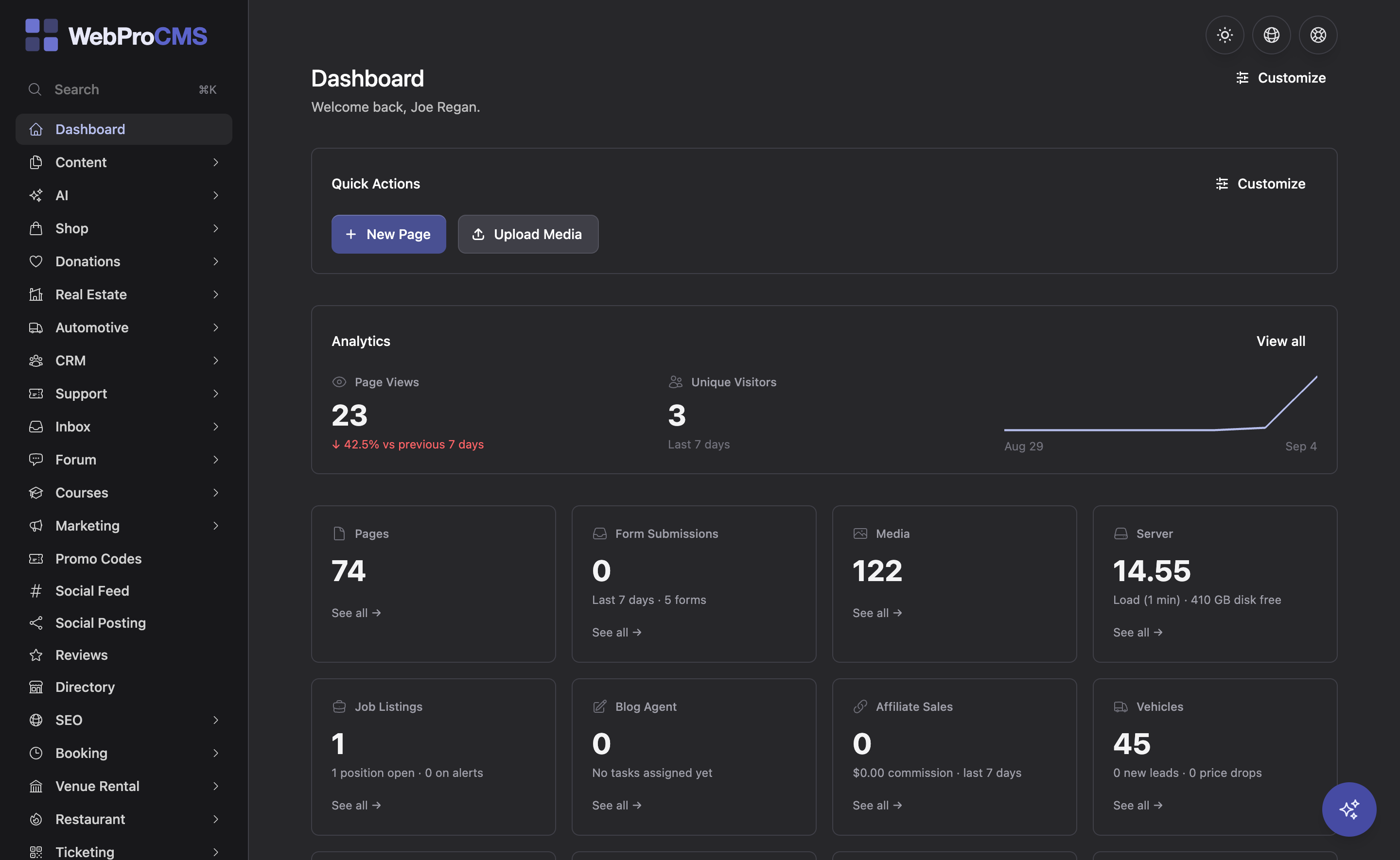
Everything a site needs, built in
More than forty feature modules are built in and switch on from Settings, with the premium ones included on every paid plan. No plugins to hunt down, no vendors to reconcile.
Page Builder & Design Library
600+ row and item templates you edit in place, with repeating rows built as loops so ten cards are one edit. Shared headers and footers, exportable themes, content types with typed fields, a forms builder, and a media library that makes AVIF and WebP variants for you.
Explore the page builder →AI Features
Generate a starting site from a description, get help from the page-builder assistant, create images with vision-written alt text, translate with a reviewer pass, and answer visitors with an AI chat bot. Bring your own OpenAI, Anthropic, Google or DeepSeek key.
Explore AI features →Marketing & Growth
Email, SMS and web-push campaigns with drip sequences and A/B subject tests, CRM audience targeting, review import and requests, social posting, an affiliate program, privacy-friendly analytics, and SEO tooling.
Explore marketing tools →Commerce & Payments
A shop with variants and Stripe checkout with automatic tax, donations, payment links, invoices and estimates with contracts e-signed online, a client portal, online booking, courses, memberships, and event ticketing.
Explore commerce →Industry Solutions
Real estate with MLS listings and map search, dealer inventory with CSV and DMS import, restaurant ordering with a kitchen board, venue rental with rate cards and leases, directories, events, and job listings.
Explore industry solutions →Platform & Operations
Signed updates with one-click rollback, backups with off-site copies, 2FA and passkeys, a REST API and webhooks, dashboard white-labeling, custom feature modules, and Fleet management for every site you run.
Explore the platform →Install in minutes, on a server you control
A throwaway WordPress plugin does the install. No license key is needed to run it.
Provision WordPress on a VPS
Spin up a fresh WordPress on RunCloud, Forge, Ploi, Cloudways or any VPS-class host, with WordPress in a public folder. It needs PHP 8.4, about 512 MB of memory and the ability to run php artisan.
Upload the installer plugin
Add the WebProCMS installer the way you would add any WordPress plugin. It reuses the WordPress database and downloads the verified build from webprocms.com.
Click Install
The installer swaps folders and keeps the old WordPress restorable. Create a free webprocms.com account and its license key activates saving and updates on your new site.
Start from a description. Stay on brand.
AI site generation drafts pages from a short description. From there, a page-builder assistant helps with the copy, image generation writes its own alt text, and AI translation runs a reviewer pass. A chat bot answers visitors from your own content, and semantic search helps it understand what they mean.
Every AI feature reads the same AI Knowledge brief: identity, voice, audience, and the claims you never make. The chat bot and the page builder never disagree about who you are. Bring your own key for OpenAI, Anthropic, Google or DeepSeek.
Explore AI features →

Every site you manage, on one screen
Fleet management, included with Agency and Enterprise, makes your own WebProCMS site the head of the fleet. Each install checks in with its version, health, uptime, errors, resource usage, SEO score and traffic. Built by an agency, for agencies and independent developers.
See who is behind on updates and send update now to any install.
Schedule them per server so your sites never all run at once.
A weekly digest of every site’s traffic, resource use, SEO and accessibility scores — and AI brokered to your clients on your own keys.
Install WordPress, upload the zip, click Install. The new site enrolls itself with zero fields.
Built for the people who run websites
One product, three ways in. Pick the one that sounds like you.
For business owners
Run your own site without waiting on a developer
Edit any row in place, switch features on from Settings, and let signed overnight updates keep the site current.
Text, images, colors and spacing edited in place
Forms, blog, media library and SEO basics built in
Free on Core for up to five sites; booking and payments on Business
For independent developers
One Laravel codebase for every client
Laravel 13, Livewire 4, Alpine 3 and Tailwind 4 in one language, with no JavaScript SPA and no separate API layer to maintain.
Custom rows, items and x-dl primitives per install
REST API with tokens and signed webhooks
Business adds every premium feature and custom module installs for $25/mo
For agencies
Run the whole fleet from one dashboard
Your own site becomes the fleet head. Every client install reports in, and you push updates, schedule backups and read error reports from one place.
Version, health, uptime and errors for every install
White-labeled dashboard and preconfigured installers
Agency adds Fleet, unlimited sites and your own modules for $50/mo
Free to start. Three plans when you grow.
Core is free for up to five sites. Business and Agency bill monthly and cancel anytime; Enterprise starts with a call.
Core
The full CMS, free — for up to five sites.
Up to 5 sites
Business
Every premium feature for one business, on up to five sites.
Up to 5 sites
Agency
Run every client site you build, with Fleet management.
Unlimited sites
Enterprise
Your team handles the content. We handle the technology.
Unlimited sites
Questions people ask before they install
Still have one?
Talk to Us